

What is a Report?
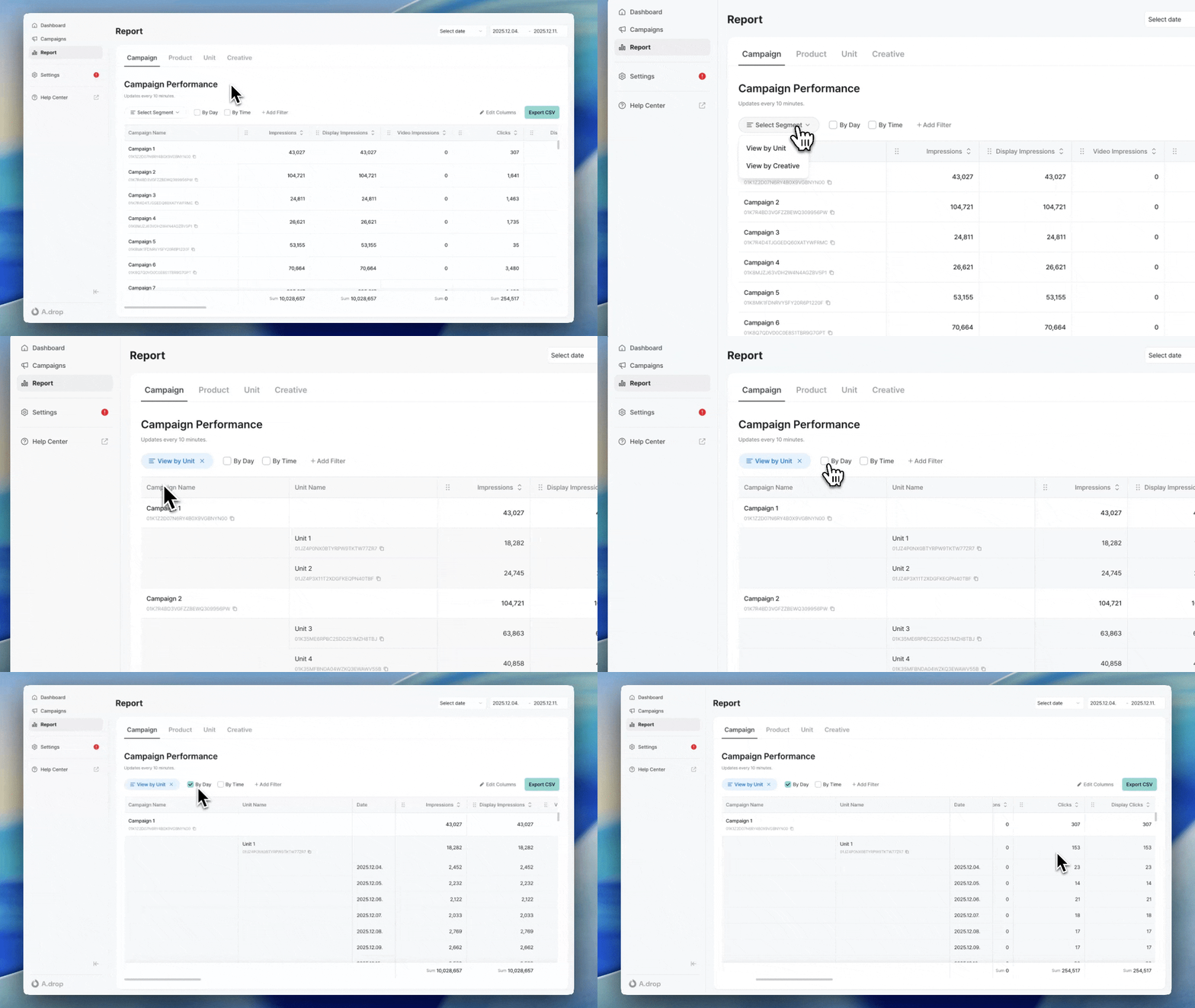
Reports allow you to view performance data by campaign, ad product, ad unit, and creative. Access them from the Report menu in the sidebar.- Data refresh interval: 10 minutes
- Maximum query period: 1 year
Understanding Metrics
Basic Metrics
Impressions and clicks are each counted at most once per ad request, following industry-standard measurement guidelines.
For CPM/CPC campaigns, ads served to a device at the time of an ad request are what get displayed. As a result, even after a campaign reaches its target impressions/clicks and can no longer serve, or has ended, ads delivered to devices just before that point may still be shown or clicked, and those events will be counted — causing final figures to slightly exceed the configured target.
Cost Metrics
Video Metrics
These metrics show the viewing quality of campaigns that include video creatives. They are available at the campaign, ad product, ad unit, and creative levels.Video metrics are only counted for items where video creatives were served. Campaigns running only image creatives will show 0.
Viewing Reports
Jump in from a campaign or product
Clicking the Performance Report button on a campaign or ad product detail screen opens the Report menu in a new window with that campaign or product filter pre-applied. You can immediately apply date ranges, segments, and additional filters to continue your analysis.Date Range Selection
Set the query period at the top of the screen. You can select preset periods (Today, Yesterday, Last 7 days, Last 30 days) or specify custom start and end dates using the date picker.Query Criteria (Tabs)
Select the data type to view from the top tabs.Segments
You can further segment the data. For example, selecting the Creative segment in the Campaign tab lets you view creative-level performance for each campaign.Filtering
You can filter to view only specific campaigns, ad products, ad units, or creatives. Adding a filter displays only those items in the table. Multiple selections are supported.Daily/Hourly View
Check the checkbox to view data broken down by day or hour.Edit Columns
Click the Edit Columns button to select which columns to display in the table. You can also drag and drop to reorder columns. Your settings are automatically saved and persist on your next visit.Sorting
Click a column header to sort data by that column. Click again to change the sort direction.Downloading Reports
CSV Export
Click the Export CSV button to download the currently viewed data as a CSV file.Column Selection
You can select only the columns you need when downloading. Default columns are provided per tab and segment, and only selected columns are included in the CSV.Large datasets are processed in the background. You’ll receive an email notification when complete.
Next Steps
Splash Ad Guide
Review guidelines for splash ads.
FAQ
Is report data updated in real-time?
Is report data updated in real-time?
Report data is refreshed every 10 minutes. If you need real-time data, check the campaign detail screen.
How do I download a report?
How do I download a report?
Click the Export CSV button on the report screen. When the file is ready, a download link will be sent to your email.
Is there a limit on the query period?
Is there a limit on the query period?
You can query up to 1 year. If you need older data, contact the publisher.