

Creation Method
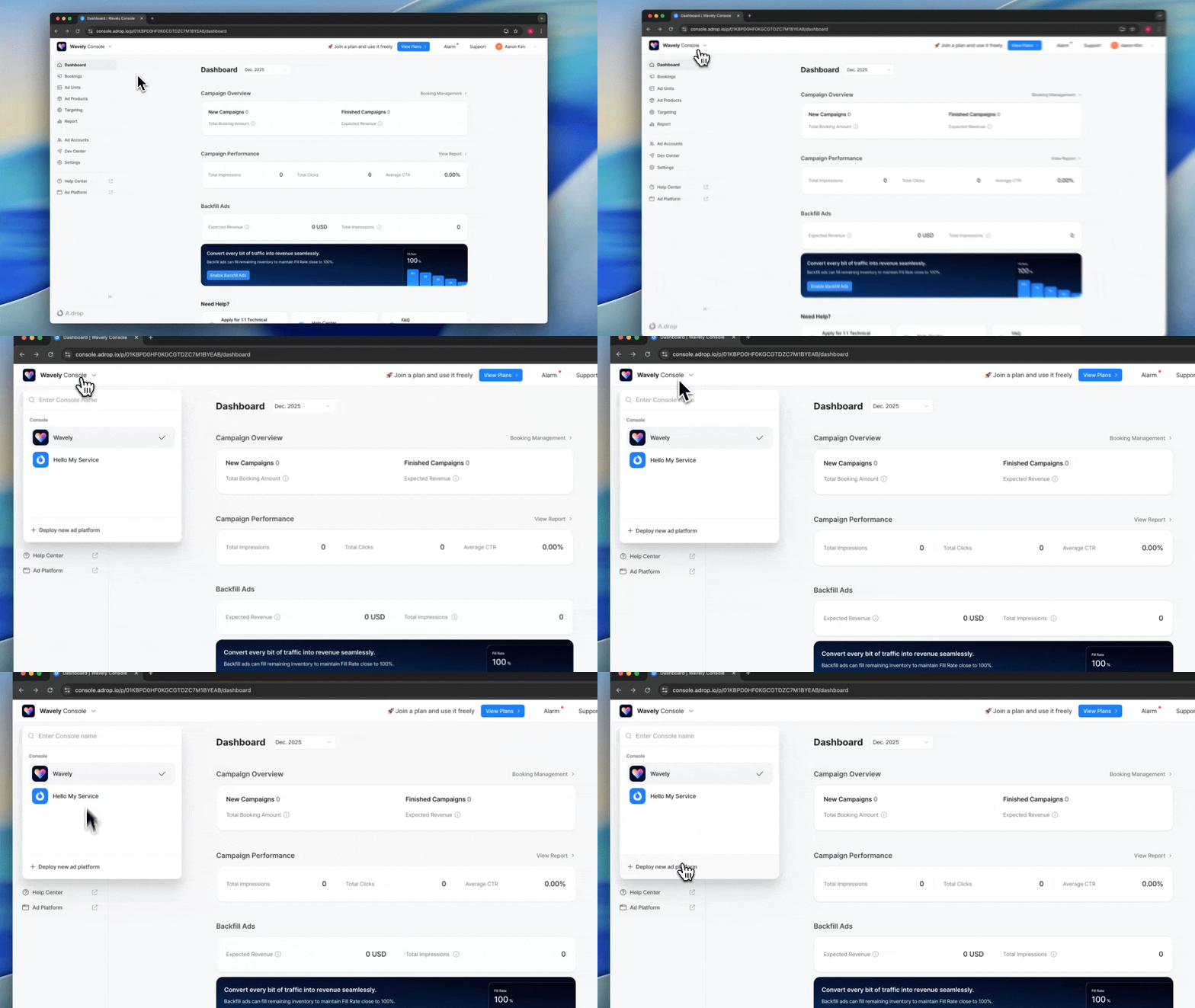
1
Open project menu
Click on the project name in the top left
2
Start deployment
Click [Deploy new Ad Platform] at the bottom of the dropdown menu
Service Name
- Enter your official name (2-20 characters)
- Korean, English, and numbers are allowed
- Display it clearly as it will be shown to advertisers
Logo and Theme Color
- Format: PNG or SVG recommended
- Size: 256px or larger
- Theme Color: Automatically extracted from the logo and applied throughout the Ad Platform
Border correction is recommended if the logo background color has low contrast
Subdomain
This is the link to share with advertisers.- Allowed characters: Lowercase letters, numbers, hyphen (-)
- Final link:
https://{your-input}.adrop.io - No duplicates: Cannot use domains already in use by other publishers
- Modifiable: Can be changed after creation
Operating Region Settings
Advertisers will see the timezone and language according to their own settings.
Next Steps
Configuring the Ad Platform
Set up branding and service information
FAQ
Can I create multiple Ad Platforms?
Can I create multiple Ad Platforms?
Yes. You can create separate Ad Platforms for each service. Each platform has independent branding, Ad Products, and Settlement systems.
Can I use a custom domain?
Can I use a custom domain?
By default, it’s provided in the format
{subdomain}.adrop.io. If you need a custom domain, please contact us separately.Can advertisers book Campaigns directly?
Can advertisers book Campaigns directly?
Yes. When you share the Ad Platform link, advertisers can directly access it to review products, book Campaigns, register Creatives, and make payments in a self-service manner.