

Typically, advertisers create campaigns and complete payment through self-service in the console. Use publisher direct booking only when pre-agreed with the advertiser.
What is Direct Booking?
A feature where publishers create campaigns on behalf of advertisers. Use in the following cases:- When advertisers have difficulty using the console
- When contracts are completed offline and publishers need to register directly
- When running internal promotional campaigns
Limitations
Creating a Campaign
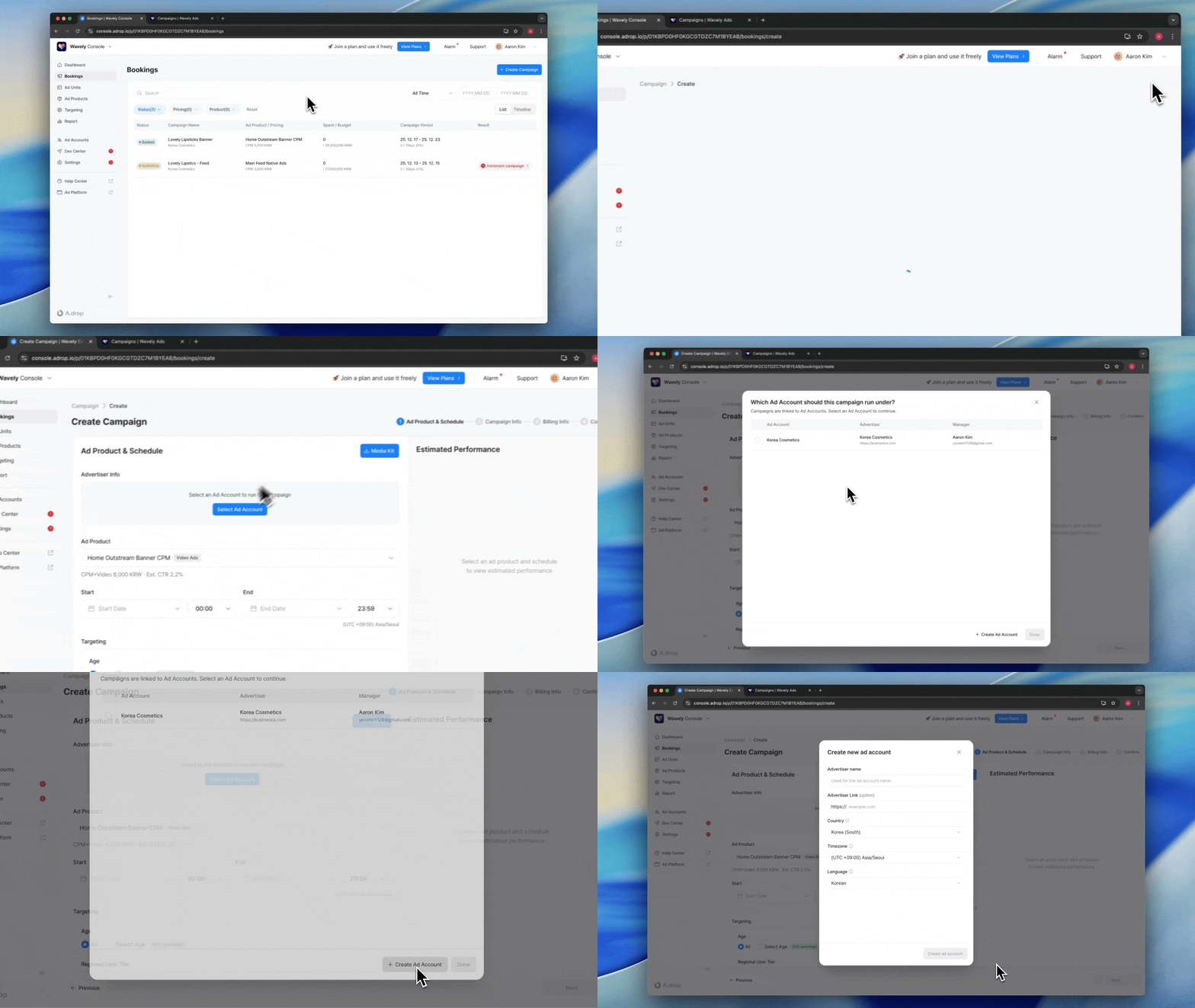
Getting Started
- Click Bookings in the left menu.
- Click the Create Campaign button.
Step 1: Ad Product & Schedule
In this step, complete ad account selection, product selection, schedule setting, and targeting all at once. Selecting Ad Account First, select an ad account. The advertiser name and website are automatically populated when an ad account is selected.- Select Existing Account: Choose from the list of registered ad accounts
- Create New Account: Create new if no advertiser account exists
Selecting Ad Product
After selecting the ad account, select an ad product.
Setting Schedule
Set the campaign start and end dates.
Setting Targeting (Optional)
Configure targeting if needed.
- Select categories or groups to include
- Select categories or groups to exclude
Step 2: Campaign Info
Step 3: Payment & Business Info
Step 4: Final Confirmation
- Review the entered information.
- Check Terms Agreement.
- Click the Book button.
Campaigns created by publishers immediately become Booked status without separate review.
Registering Creatives
After creating a campaign, creatives must be registered for ads to display.Registration Steps
- Navigate to the created campaign’s detail screen.
- Click the Add Creative button in the Ad Creatives section.
- Enter creative information.
Creative Info
Creative Specifications
Required creative specifications vary based on the creative sets configured in the ad product. Check required specifications on the creative registration screen.Recommended image resolution is 3× the display size. (e.g., 300x250dp unit → 900x750px image)
Creative Review
Creatives registered by publishers also require review. You can approve directly from the campaign detail screen.Next Steps
Operation Settings
Review operation-related settings like payment methods and advertiser permissions.
FAQ
Can advertisers see directly booked campaigns?
Can advertisers see directly booked campaigns?
Yes. Directly booked campaigns are displayed in the corresponding ad account. Advertisers can check campaign status and performance when they log into the console.
Why can't I use card payment for direct booking?
Why can't I use card payment for direct booking?
Card payment requires advertisers to enter their own payment information and consent. Since publishers cannot process card payments on behalf of advertisers, direct booking only supports manual payment (postpaid).