> ## Documentation Index
> Fetch the complete documentation index at: https://docs.adrop.io/llms.txt
> Use this file to discover all available pages before exploring further.
# Publisher Direct Booking
> Learn how publishers can create campaigns on behalf of advertisers.
Typically, advertisers create campaigns and complete payment through self-service in the console. Use publisher direct booking only when pre-agreed with the advertiser.
***
## What is Direct Booking?
A feature where publishers create campaigns on behalf of advertisers. Use in the following cases:
* When advertisers have difficulty using the console
* When contracts are completed offline and publishers need to register directly
* When running internal promotional campaigns
### Limitations
| Item | Details |
| ------------------ | ------------------------------------------------- |
| **Payment Method** | Manual payment only (card payment not available) |
| **Start Date** | Cannot be set to a past date |
| **Review** | Campaigns created by publishers are auto-approved |
Creating campaigns without advertiser consent may cause disputes. Always confirm with the advertiser beforehand.
***
## Creating a Campaign
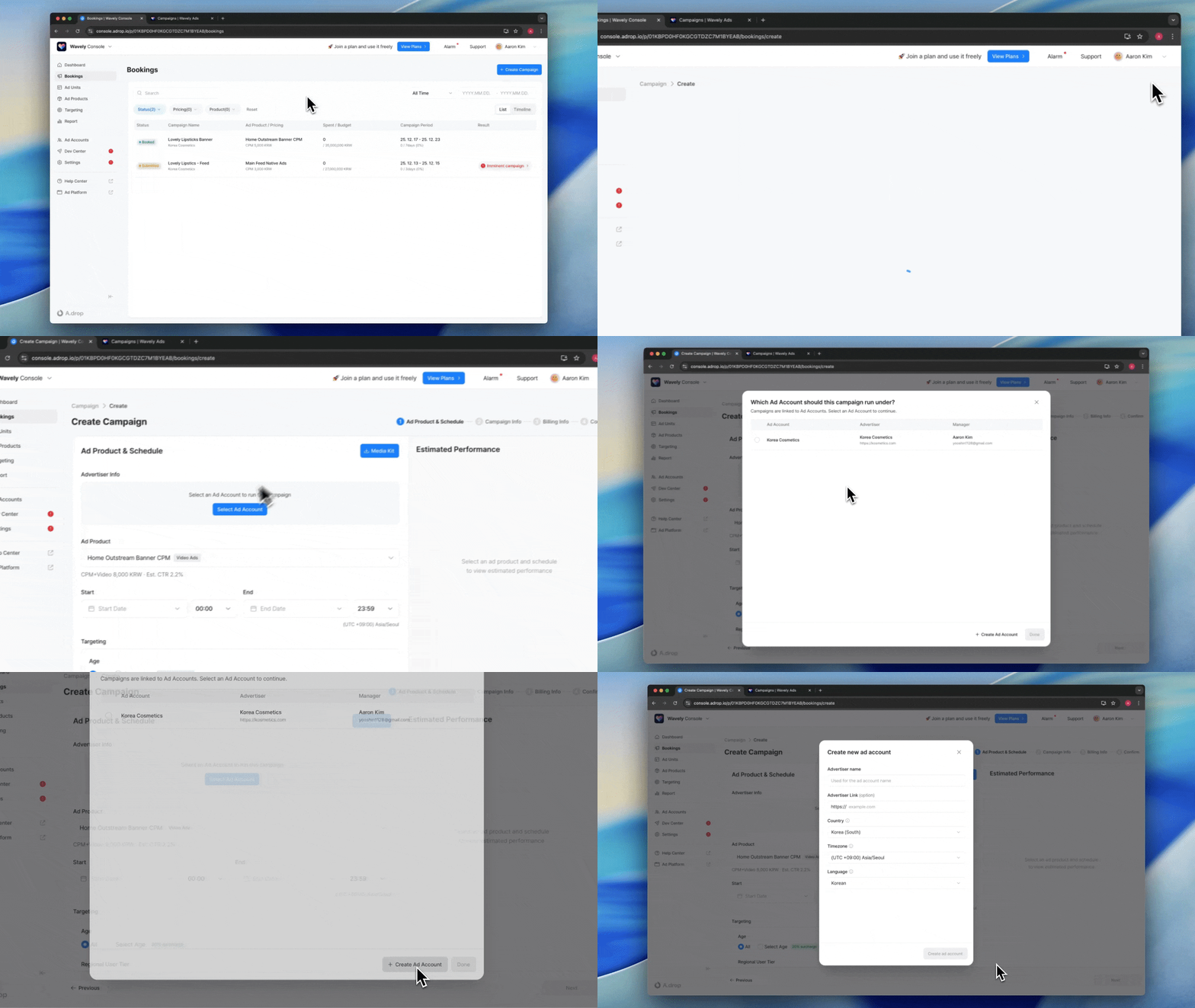 ### Getting Started
1. Click **Bookings** in the left menu.
2. Click the **Create Campaign** button.
### Step 1: Ad Product & Schedule
In this step, complete ad account selection, product selection, schedule setting, and targeting all at once.
**Selecting Ad Account**
First, select an ad account. The advertiser name and website are automatically populated when an ad account is selected.
* **Select Existing Account**: Choose from the list of registered ad accounts
* **Create New Account**: Create new if no advertiser account exists
Fields for creating a new account:
| Item | Description |
| ------------------- | -------------------------------------- |
| **Advertiser Name** | Advertiser name (required) |
| **Website** | Advertiser website URL (optional) |
| **Country** | Country for accounting purposes |
| **Time Zone** | Time zone applied to campaign schedule |
| **Language** | Console display language |
**Selecting Ad Product**
After selecting the ad account, select an ad product.
**Setting Schedule**
Set the campaign start and end dates.
**Setting Targeting** (Optional)
Configure targeting if needed.
* Select categories or groups to include
* Select categories or groups to exclude
### Step 2: Campaign Info
| Item | Description |
| ---------------------- | -------------------------------- |
| **Campaign Title** | Name to distinguish the campaign |
| **Budget** | Total campaign budget |
| **Advertiser Name** | Auto-populated from ad account |
| **Advertiser Website** | Auto-populated from ad account |
### Step 3: Payment & Business Info
| Item | Description |
| ------------------ | ------------------------------------------------------------ |
| **Contact Name** | Contract contact person name |
| **Contact Email** | Email address for notifications |
| **Payment Method** | Manual payment (direct booking doesn't support card payment) |
### Step 4: Final Confirmation
1. Review the entered information.
2. Check **Terms Agreement**.
3. Click the **Book** button.
Campaigns created by publishers immediately become Booked status without separate review.
***
## Registering Creatives
After creating a campaign, creatives must be registered for ads to display.
### Registration Steps
1. Navigate to the created campaign's detail screen.
2. Click the **Add Creative** button in the **Ad Creatives** section.
3. Enter creative information.
### Creative Info
| Item | Description |
| ------------------- | ---------------------------------------------- |
| **Creative Name** | Name to distinguish the creative |
| **Creative Set** | Select the creative set where ads will display |
| **Creative File** | Upload image or video |
| **Destination URL** | URL to navigate to when creative is clicked |
| **Target Browser** | Default browser or in-app browser |
### Creative Specifications
Required creative specifications vary based on the creative sets configured in the ad product. Check required specifications on the creative registration screen.
Recommended image resolution is 3× the display size. (e.g., 300x250dp unit → 900x750px image)
### Creative Review
Creatives registered by publishers also require review. You can approve directly from the campaign detail screen.
***
## Next Steps
Review operation-related settings like payment methods and advertiser permissions.
***
## FAQ
Yes. Directly booked campaigns are displayed in the corresponding ad account. Advertisers can check campaign status and performance when they log into the console.
Card payment requires advertisers to enter their own payment information and consent. Since publishers cannot process card payments on behalf of advertisers, direct booking only supports manual payment (postpaid).
### Getting Started
1. Click **Bookings** in the left menu.
2. Click the **Create Campaign** button.
### Step 1: Ad Product & Schedule
In this step, complete ad account selection, product selection, schedule setting, and targeting all at once.
**Selecting Ad Account**
First, select an ad account. The advertiser name and website are automatically populated when an ad account is selected.
* **Select Existing Account**: Choose from the list of registered ad accounts
* **Create New Account**: Create new if no advertiser account exists
Fields for creating a new account:
| Item | Description |
| ------------------- | -------------------------------------- |
| **Advertiser Name** | Advertiser name (required) |
| **Website** | Advertiser website URL (optional) |
| **Country** | Country for accounting purposes |
| **Time Zone** | Time zone applied to campaign schedule |
| **Language** | Console display language |
**Selecting Ad Product**
After selecting the ad account, select an ad product.
**Setting Schedule**
Set the campaign start and end dates.
**Setting Targeting** (Optional)
Configure targeting if needed.
* Select categories or groups to include
* Select categories or groups to exclude
### Step 2: Campaign Info
| Item | Description |
| ---------------------- | -------------------------------- |
| **Campaign Title** | Name to distinguish the campaign |
| **Budget** | Total campaign budget |
| **Advertiser Name** | Auto-populated from ad account |
| **Advertiser Website** | Auto-populated from ad account |
### Step 3: Payment & Business Info
| Item | Description |
| ------------------ | ------------------------------------------------------------ |
| **Contact Name** | Contract contact person name |
| **Contact Email** | Email address for notifications |
| **Payment Method** | Manual payment (direct booking doesn't support card payment) |
### Step 4: Final Confirmation
1. Review the entered information.
2. Check **Terms Agreement**.
3. Click the **Book** button.
Campaigns created by publishers immediately become Booked status without separate review.
***
## Registering Creatives
After creating a campaign, creatives must be registered for ads to display.
### Registration Steps
1. Navigate to the created campaign's detail screen.
2. Click the **Add Creative** button in the **Ad Creatives** section.
3. Enter creative information.
### Creative Info
| Item | Description |
| ------------------- | ---------------------------------------------- |
| **Creative Name** | Name to distinguish the creative |
| **Creative Set** | Select the creative set where ads will display |
| **Creative File** | Upload image or video |
| **Destination URL** | URL to navigate to when creative is clicked |
| **Target Browser** | Default browser or in-app browser |
### Creative Specifications
Required creative specifications vary based on the creative sets configured in the ad product. Check required specifications on the creative registration screen.
Recommended image resolution is 3× the display size. (e.g., 300x250dp unit → 900x750px image)
### Creative Review
Creatives registered by publishers also require review. You can approve directly from the campaign detail screen.
***
## Next Steps
Review operation-related settings like payment methods and advertiser permissions.
***
## FAQ
Yes. Directly booked campaigns are displayed in the corresponding ad account. Advertisers can check campaign status and performance when they log into the console.
Card payment requires advertisers to enter their own payment information and consent. Since publishers cannot process card payments on behalf of advertisers, direct booking only supports manual payment (postpaid).