> ## Documentation Index
> Fetch the complete documentation index at: https://docs.adrop.io/llms.txt
> Use this file to discover all available pages before exploring further.
# Analytics & Reports
> Learn how to view campaign performance and download reports.
***
 ## What is a Report?
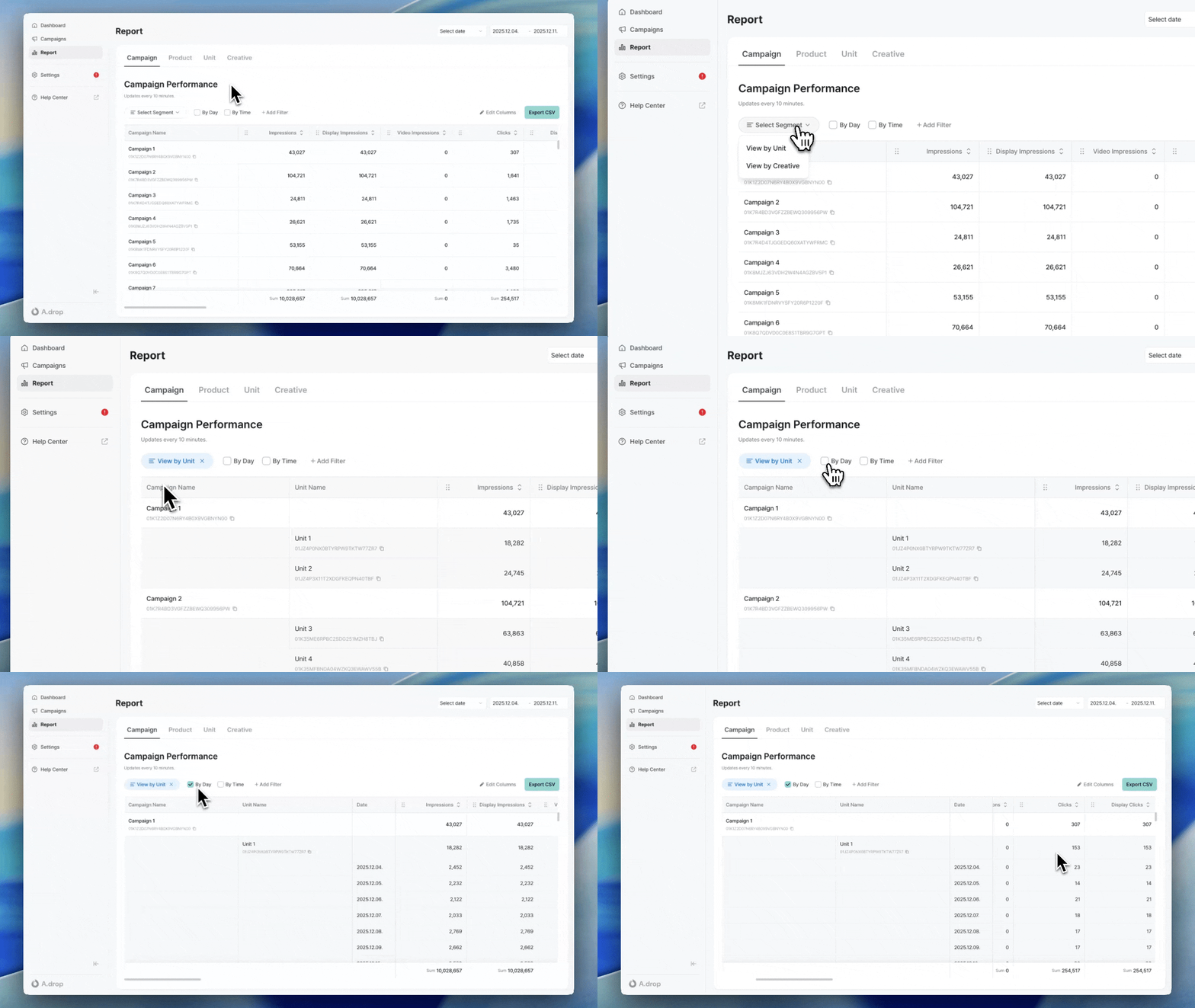
Reports allow you to view performance data by campaign, ad product, ad unit, and creative. Access them from the **Report** menu in the sidebar.
* Data refresh interval: 10 minutes
* Maximum query period: 1 year
***
## Understanding Metrics
### Basic Metrics
| Metric | Description |
| ---------------------------- | ---------------------------------------------------- |
| **Impressions** | Number of times the ad was displayed on user screens |
| **Clicks** | Number of times users clicked the ad |
| **CTR (Click-Through Rate)** | Click rate. Clicks ÷ Impressions × 100 |
Impressions and clicks are each counted at most once per ad request, following industry-standard measurement guidelines.
For CPM/CPC campaigns, ads served to a device at the time of an ad request are what get displayed. As a result, even after a campaign reaches its target impressions/clicks and can no longer serve, or has ended, ads delivered to devices just before that point may still be shown or clicked, and those events will be counted — causing final figures to slightly exceed the configured target.
### Cost Metrics
| Metric | Description |
| ------------------------- | -------------------------- |
| **CPM (Cost Per Mille)** | Cost per 1,000 impressions |
| **CPC (Cost Per Click)** | Cost per click |
| **CPP (Cost Per Period)** | Fixed cost per period |
### Video Metrics
These metrics show the viewing quality of campaigns that include video creatives. They are available at the campaign, ad product, ad unit, and creative levels.
| Metric | Description |
| --------------------------- | ----------------------------------------------------------- |
| **Valid Views** | Number of times the video was played for at least 3 seconds |
| **Valid View Rate** | Valid Views ÷ Video Impressions × 100 |
| **Completed Views** | Number of times the video was played to the end |
| **View-Through Rate (VTR)** | Completed Views ÷ Video Impressions × 100 |
Video metrics are only counted for items where video creatives were served. Campaigns running only image creatives will show 0.
***
## Viewing Reports
### Jump in from a campaign or product
Clicking the **Performance Report** button on a campaign or ad product detail screen opens the Report menu in a new window with that campaign or product filter pre-applied. You can immediately apply date ranges, segments, and additional filters to continue your analysis.
### Date Range Selection
Set the query period at the top of the screen. You can select preset periods (Today, Yesterday, Last 7 days, Last 30 days) or specify custom start and end dates using the date picker.
### Query Criteria (Tabs)
Select the data type to view from the top tabs.
| Tab | Description |
| -------------- | ------------------------- |
| **Campaign** | Performance by campaign |
| **Ad Product** | Performance by ad product |
| **Ad Unit** | Performance by ad unit |
| **Creative** | Performance by creative |
### Segments
You can further segment the data. For example, selecting the **Creative** segment in the Campaign tab lets you view creative-level performance for each campaign.
### Filtering
You can filter to view only specific campaigns, ad products, ad units, or creatives. Adding a filter displays only those items in the table. Multiple selections are supported.
### Daily/Hourly View
Check the checkbox to view data broken down by day or hour.
| Option | Description |
| ---------- | ------------------------------ |
| **Daily** | Display data separated by date |
| **Hourly** | Display data separated by hour |
### Edit Columns
Click the **Edit Columns** button to select which columns to display in the table. You can also drag and drop to reorder columns. Your settings are automatically saved and persist on your next visit.
### Sorting
Click a column header to sort data by that column. Click again to change the sort direction.
***
## Downloading Reports
### CSV Export
Click the **Export CSV** button to download the currently viewed data as a CSV file.
| Item | Description |
| ------------------- | ---------------------------------------------------- |
| **File Name** | `report-{tab}_{segment}-{start_date}_{end_date}.csv` |
| **Delivery Method** | Download link sent via email when file is ready |
### Column Selection
You can select only the columns you need when downloading. Default columns are provided per tab and segment, and only selected columns are included in the CSV.
Large datasets are processed in the background. You'll receive an email notification when complete.
***
## Next Steps
Review guidelines for splash ads.
***
## FAQ
Report data is refreshed every 10 minutes. If you need real-time data, check the campaign detail screen.
Click the **Export CSV** button on the report screen. When the file is ready, a download link will be sent to your email.
You can query up to 1 year. If you need older data, contact the publisher.
## What is a Report?
Reports allow you to view performance data by campaign, ad product, ad unit, and creative. Access them from the **Report** menu in the sidebar.
* Data refresh interval: 10 minutes
* Maximum query period: 1 year
***
## Understanding Metrics
### Basic Metrics
| Metric | Description |
| ---------------------------- | ---------------------------------------------------- |
| **Impressions** | Number of times the ad was displayed on user screens |
| **Clicks** | Number of times users clicked the ad |
| **CTR (Click-Through Rate)** | Click rate. Clicks ÷ Impressions × 100 |
Impressions and clicks are each counted at most once per ad request, following industry-standard measurement guidelines.
For CPM/CPC campaigns, ads served to a device at the time of an ad request are what get displayed. As a result, even after a campaign reaches its target impressions/clicks and can no longer serve, or has ended, ads delivered to devices just before that point may still be shown or clicked, and those events will be counted — causing final figures to slightly exceed the configured target.
### Cost Metrics
| Metric | Description |
| ------------------------- | -------------------------- |
| **CPM (Cost Per Mille)** | Cost per 1,000 impressions |
| **CPC (Cost Per Click)** | Cost per click |
| **CPP (Cost Per Period)** | Fixed cost per period |
### Video Metrics
These metrics show the viewing quality of campaigns that include video creatives. They are available at the campaign, ad product, ad unit, and creative levels.
| Metric | Description |
| --------------------------- | ----------------------------------------------------------- |
| **Valid Views** | Number of times the video was played for at least 3 seconds |
| **Valid View Rate** | Valid Views ÷ Video Impressions × 100 |
| **Completed Views** | Number of times the video was played to the end |
| **View-Through Rate (VTR)** | Completed Views ÷ Video Impressions × 100 |
Video metrics are only counted for items where video creatives were served. Campaigns running only image creatives will show 0.
***
## Viewing Reports
### Jump in from a campaign or product
Clicking the **Performance Report** button on a campaign or ad product detail screen opens the Report menu in a new window with that campaign or product filter pre-applied. You can immediately apply date ranges, segments, and additional filters to continue your analysis.
### Date Range Selection
Set the query period at the top of the screen. You can select preset periods (Today, Yesterday, Last 7 days, Last 30 days) or specify custom start and end dates using the date picker.
### Query Criteria (Tabs)
Select the data type to view from the top tabs.
| Tab | Description |
| -------------- | ------------------------- |
| **Campaign** | Performance by campaign |
| **Ad Product** | Performance by ad product |
| **Ad Unit** | Performance by ad unit |
| **Creative** | Performance by creative |
### Segments
You can further segment the data. For example, selecting the **Creative** segment in the Campaign tab lets you view creative-level performance for each campaign.
### Filtering
You can filter to view only specific campaigns, ad products, ad units, or creatives. Adding a filter displays only those items in the table. Multiple selections are supported.
### Daily/Hourly View
Check the checkbox to view data broken down by day or hour.
| Option | Description |
| ---------- | ------------------------------ |
| **Daily** | Display data separated by date |
| **Hourly** | Display data separated by hour |
### Edit Columns
Click the **Edit Columns** button to select which columns to display in the table. You can also drag and drop to reorder columns. Your settings are automatically saved and persist on your next visit.
### Sorting
Click a column header to sort data by that column. Click again to change the sort direction.
***
## Downloading Reports
### CSV Export
Click the **Export CSV** button to download the currently viewed data as a CSV file.
| Item | Description |
| ------------------- | ---------------------------------------------------- |
| **File Name** | `report-{tab}_{segment}-{start_date}_{end_date}.csv` |
| **Delivery Method** | Download link sent via email when file is ready |
### Column Selection
You can select only the columns you need when downloading. Default columns are provided per tab and segment, and only selected columns are included in the CSV.
Large datasets are processed in the background. You'll receive an email notification when complete.
***
## Next Steps
Review guidelines for splash ads.
***
## FAQ
Report data is refreshed every 10 minutes. If you need real-time data, check the campaign detail screen.
Click the **Export CSV** button on the report screen. When the file is ready, a download link will be sent to your email.
You can query up to 1 year. If you need older data, contact the publisher.