> ## Documentation Index
> Fetch the complete documentation index at: https://docs.adrop.io/llms.txt
> Use this file to discover all available pages before exploring further.
# Create Ad Account
> To run ads, you must first create an ad account. This guide explains how to access the Ad Platform, create an ad account, and set up a payment profile.
***
## Access Ad Platform
Access the Ad Platform via the link provided by the publisher.
1. Open the Ad Platform URL in your browser.
* Format: `https://{publisher-domain}.adrop.io`
2. **Log in** or **sign up**.
***
## Create Ad Account
An ad account is the unit for booking and managing campaigns.
You can create multiple ad accounts within one organization and share payment profiles across them. Separate ad accounts by brand or project for better management.
### How to Create an Account
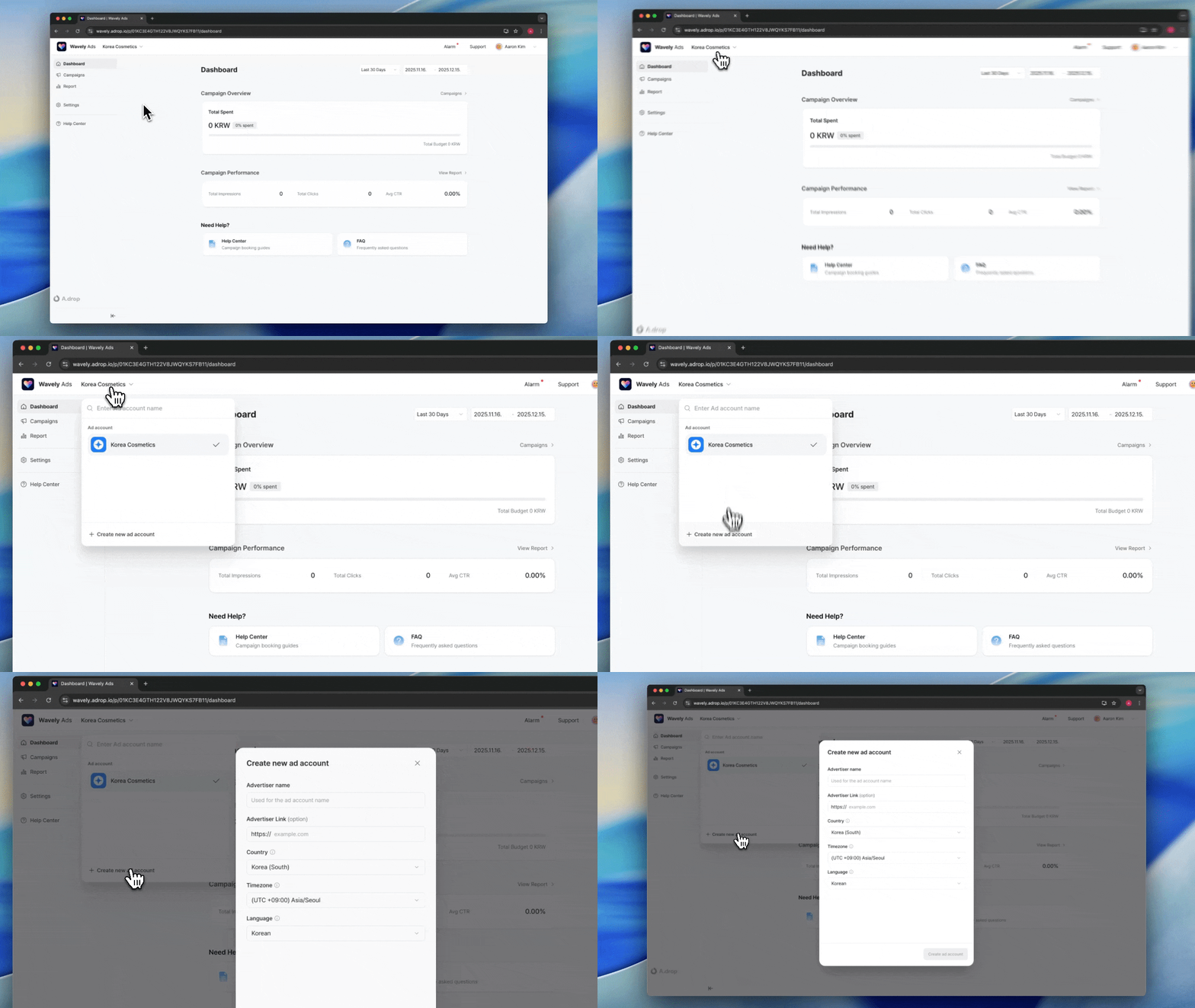 1. Click the ad account name in the top-left corner
2. Click **\[+ Create]** at the bottom of the dropdown menu
3. Enter account information and click **\[Create]**
Created ad accounts can be switched by selecting them from the dropdown.
### Enter Account Information
| Item | Description |
| ------------------- | -------------------------------------------------------------------------- |
| **Advertiser Name** | Advertiser or company name (2-20 characters). Used as the ad account name. |
| **Website** | Advertiser website URL (optional) |
| **Country** | Advertiser's country. Affects tax rate and payment currency. |
| **Timezone** | Timezone used for report data display |
| **Language** | Ad Platform interface language |
Campaign schedules and ad delivery are based on the ad product's timezone.
***
## Set Up Payment Profile
A payment profile stores business information and payment methods.
Payment profiles can be shared across multiple ad accounts. You can create your own or be invited by team members to use theirs.
### Create Payment Profile
1. Select **Billing & Payments** from the left menu
2. Click **Add Payment Profile**
3. Enter profile name and click **Create**
### Enter Business Information
| Item | Description |
| -------------------- | -------------------------------------------------------------------------- |
| **Country** | Billing country (Korea, Japan, India supported) |
| **Address** | City, detailed address, postal code |
| **Business Name** | Corporate name or trade name |
| **Tax ID** | Business registration number (numbers only, no hyphens) |
| **Business License** | Upload business license file (image or PDF) |
| **Primary Email** | Email for tax invoice issuance and settlement notifications |
| **CC Emails** | Additional recipient emails (separate multiple with commas or line breaks) |
**Tax ID & Rates by Country**
| Country | Tax ID | Tax Rate | Tax Name |
| -------------- | ---------------------------------------- | -------- | -------------- |
| **Korea (KR)** | Business Registration Number (10 digits) | 10% | VAT |
| **Japan (JP)** | Corporate Number (10 digits) | 0% | Reverse Charge |
| **USA (US)** | EIN (9 digits) | 0% | Reverse Charge |
| **India (IN)** | GSTIN (15 digits) | 0% | Reverse Charge |
For overseas advertisers except Korea, Reverse Charge applies. Invoices do not include tax, and advertisers must report and pay taxes according to their local tax laws.
### Register Payment Method
| Payment Provider | Supported Currency | Description |
| ----------------- | ------------------ | ----------------------------------------------- |
| **Toss Payments** | KRW | Korean card payments (personal/corporate cards) |
| **Stripe** | Multi-currency | Global card payments |
1. Click the **Add Payment Method** button.
2. Select a payment provider.
3. Enter card information.
4. Click the **Register** button.
Payment profiles can only be used by ad accounts with matching countries.
***
## Share Payment Profile
To share a payment profile with team members, invite them as members.
1. Click the ad account name in the top-left corner
2. Click **\[+ Create]** at the bottom of the dropdown menu
3. Enter account information and click **\[Create]**
Created ad accounts can be switched by selecting them from the dropdown.
### Enter Account Information
| Item | Description |
| ------------------- | -------------------------------------------------------------------------- |
| **Advertiser Name** | Advertiser or company name (2-20 characters). Used as the ad account name. |
| **Website** | Advertiser website URL (optional) |
| **Country** | Advertiser's country. Affects tax rate and payment currency. |
| **Timezone** | Timezone used for report data display |
| **Language** | Ad Platform interface language |
Campaign schedules and ad delivery are based on the ad product's timezone.
***
## Set Up Payment Profile
A payment profile stores business information and payment methods.
Payment profiles can be shared across multiple ad accounts. You can create your own or be invited by team members to use theirs.
### Create Payment Profile
1. Select **Billing & Payments** from the left menu
2. Click **Add Payment Profile**
3. Enter profile name and click **Create**
### Enter Business Information
| Item | Description |
| -------------------- | -------------------------------------------------------------------------- |
| **Country** | Billing country (Korea, Japan, India supported) |
| **Address** | City, detailed address, postal code |
| **Business Name** | Corporate name or trade name |
| **Tax ID** | Business registration number (numbers only, no hyphens) |
| **Business License** | Upload business license file (image or PDF) |
| **Primary Email** | Email for tax invoice issuance and settlement notifications |
| **CC Emails** | Additional recipient emails (separate multiple with commas or line breaks) |
**Tax ID & Rates by Country**
| Country | Tax ID | Tax Rate | Tax Name |
| -------------- | ---------------------------------------- | -------- | -------------- |
| **Korea (KR)** | Business Registration Number (10 digits) | 10% | VAT |
| **Japan (JP)** | Corporate Number (10 digits) | 0% | Reverse Charge |
| **USA (US)** | EIN (9 digits) | 0% | Reverse Charge |
| **India (IN)** | GSTIN (15 digits) | 0% | Reverse Charge |
For overseas advertisers except Korea, Reverse Charge applies. Invoices do not include tax, and advertisers must report and pay taxes according to their local tax laws.
### Register Payment Method
| Payment Provider | Supported Currency | Description |
| ----------------- | ------------------ | ----------------------------------------------- |
| **Toss Payments** | KRW | Korean card payments (personal/corporate cards) |
| **Stripe** | Multi-currency | Global card payments |
1. Click the **Add Payment Method** button.
2. Select a payment provider.
3. Enter card information.
4. Click the **Register** button.
Payment profiles can only be used by ad accounts with matching countries.
***
## Share Payment Profile
To share a payment profile with team members, invite them as members.
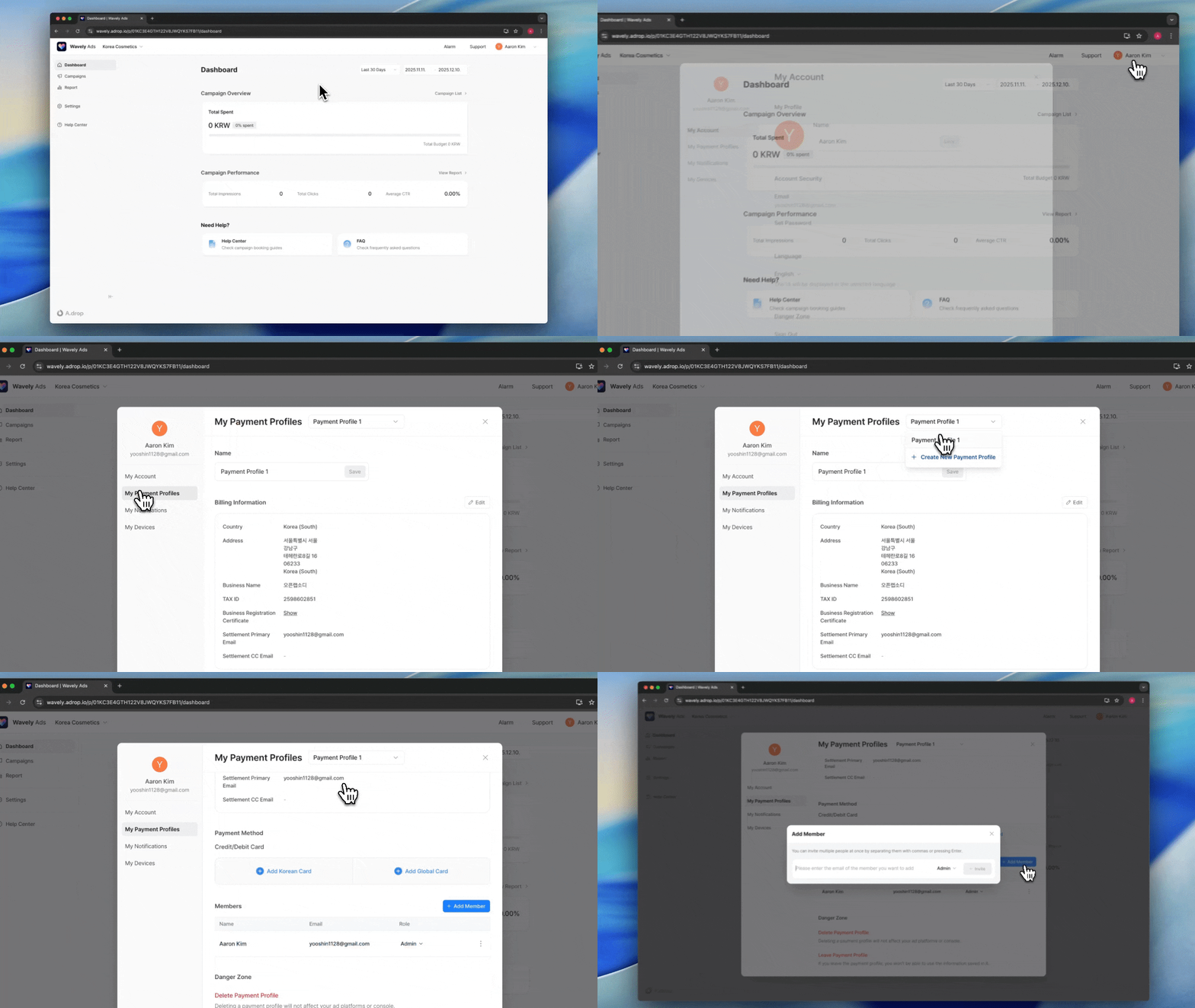 1. In **Account Modal** > **My Payment Profiles**, select the profile to share
2. Click **Invite Member**
3. Enter the email of the team member to invite
4. Click **Invite**
Invited members can use the payment profile in their own ad accounts.
***
## Manage Ad Account Members
You can invite team members to manage ad accounts together.
### Invite Member
1. Select **Member Management** menu in ad account settings
2. Click **Invite Member**
3. Enter team member's email
4. Select role
5. Click **Invite**
### Role Permissions
| Role | Description |
| ---------- | ------------------------------------------------------------------------------------------- |
| **Owner** | All permissions. Can manage payment methods, delete accounts, and manage member permissions |
| **Editor** | Can create/edit campaigns. Cannot delete or manage members |
| **Viewer** | View-only access to data |
| **Guest** | Dashboard and campaign performance view-only |
Only the Owner role can add or remove payment methods.
***
## Next Steps
Learn how to select ad products and book campaigns.
***
## FAQ
Yes, a single payment profile can be shared across multiple ad accounts. However, the payment profile's country and the ad account's country must match.
Yes, you can create multiple ad accounts within one organization. Separate them by brand or project for better management.
Register a new card in the payment profile, then select that card when booking campaigns. Existing cards can be deleted from the payment profile.
1. In **Account Modal** > **My Payment Profiles**, select the profile to share
2. Click **Invite Member**
3. Enter the email of the team member to invite
4. Click **Invite**
Invited members can use the payment profile in their own ad accounts.
***
## Manage Ad Account Members
You can invite team members to manage ad accounts together.
### Invite Member
1. Select **Member Management** menu in ad account settings
2. Click **Invite Member**
3. Enter team member's email
4. Select role
5. Click **Invite**
### Role Permissions
| Role | Description |
| ---------- | ------------------------------------------------------------------------------------------- |
| **Owner** | All permissions. Can manage payment methods, delete accounts, and manage member permissions |
| **Editor** | Can create/edit campaigns. Cannot delete or manage members |
| **Viewer** | View-only access to data |
| **Guest** | Dashboard and campaign performance view-only |
Only the Owner role can add or remove payment methods.
***
## Next Steps
Learn how to select ad products and book campaigns.
***
## FAQ
Yes, a single payment profile can be shared across multiple ad accounts. However, the payment profile's country and the ad account's country must match.
Yes, you can create multiple ad accounts within one organization. Separate them by brand or project for better management.
Register a new card in the payment profile, then select that card when booking campaigns. Existing cards can be deleted from the payment profile.